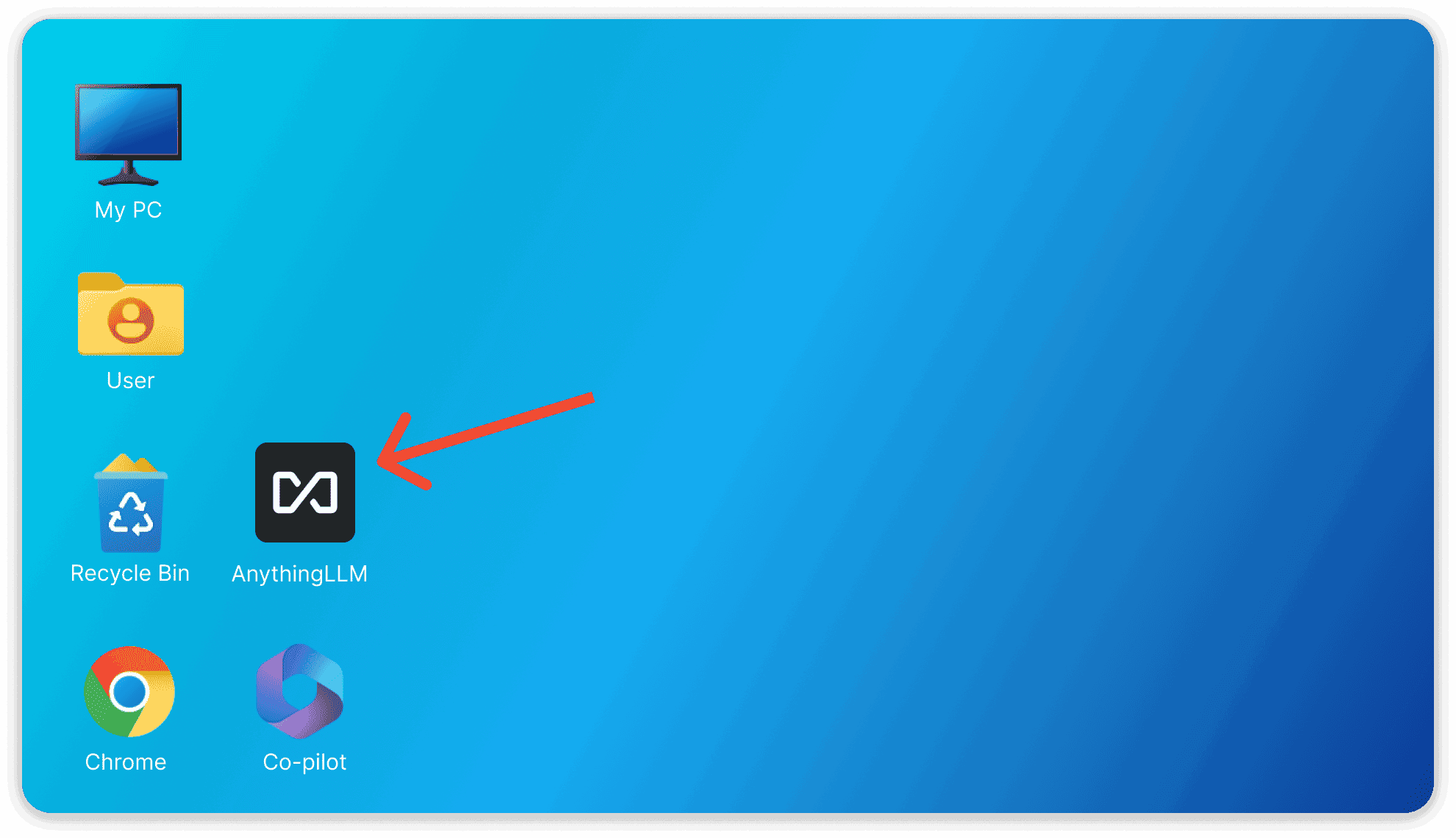
Step-by-step guide for installing RealTimeX on Windows.
Windows Installation
Install using the installation file
Application is not signed!
➤ The RealTimeX windows application is currently unsigned and Windows defender or other anti-virus software will sometimes flag the application as malicious.
➤ If you do not want to bypass that alert for any reason - please use RealTimeX another way.
OPERATING SYSTEM NOTICE
➤ RealTimeX is intended to be used on an user account of Windows Home. Other versions of windows (Enterprise or Server) may not work. We target for Windows 11.
Downloading the installation file from https://realtimex.ai (opens in a new tab)
Your internet browser may need you to verify you want to download and run the RealTimeX Desktop app since it may be marked as "untrusted" depending on your browser security settings.
Click "Keep" when downloading to allow the file to download.
Installing the application
After downloading the windows exe installer for RealTimeX, you can double-click the installer and it will display the installation process.
Anti-Virus false positive
➤ Since the application is unsigned. Native windows defender will want to ensure you mean to execute this application. Click on "more details" and the "Run anyway" button will be visible.
➤ This alert is temporary until the application signing process is completed on our end.
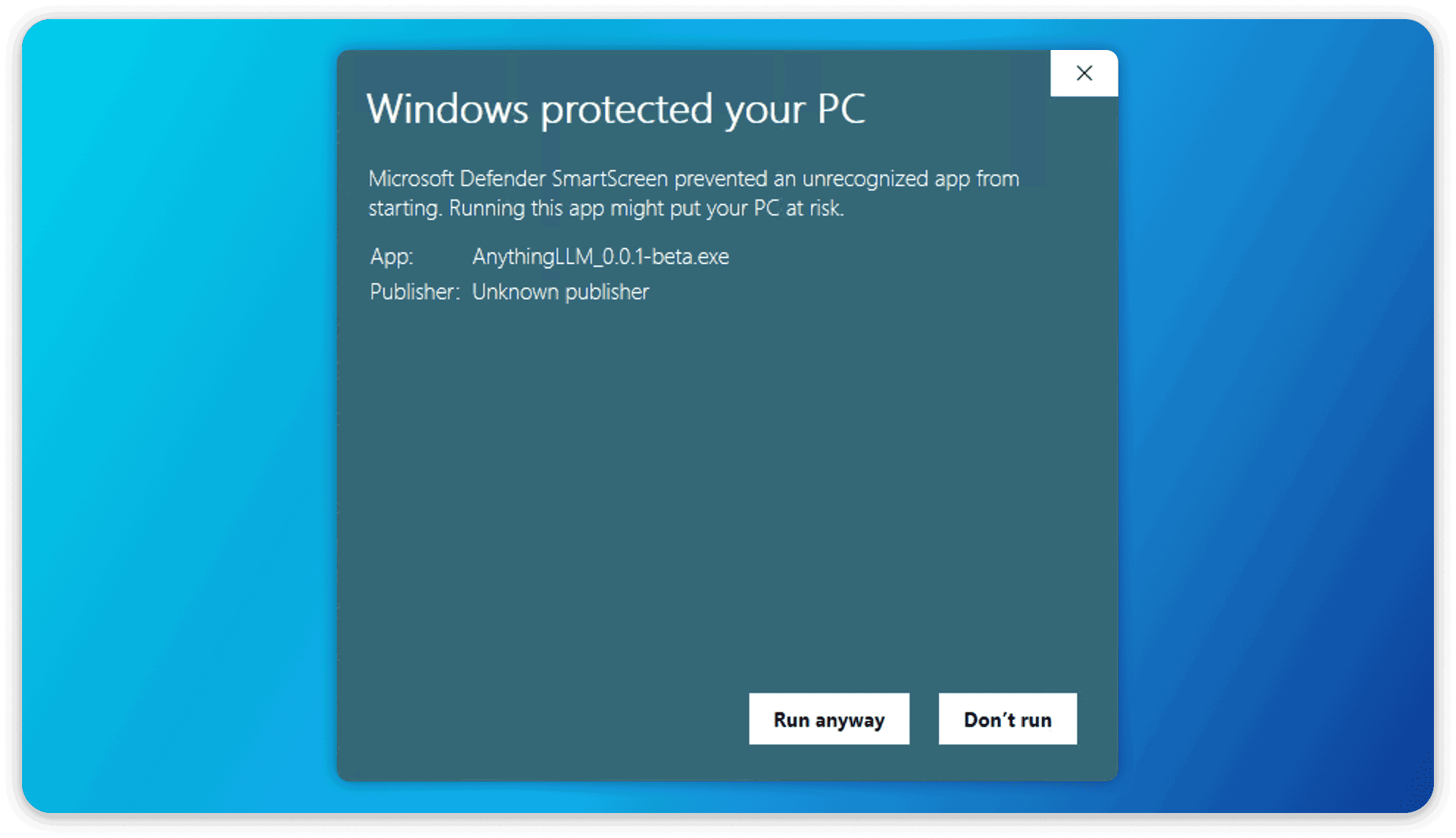
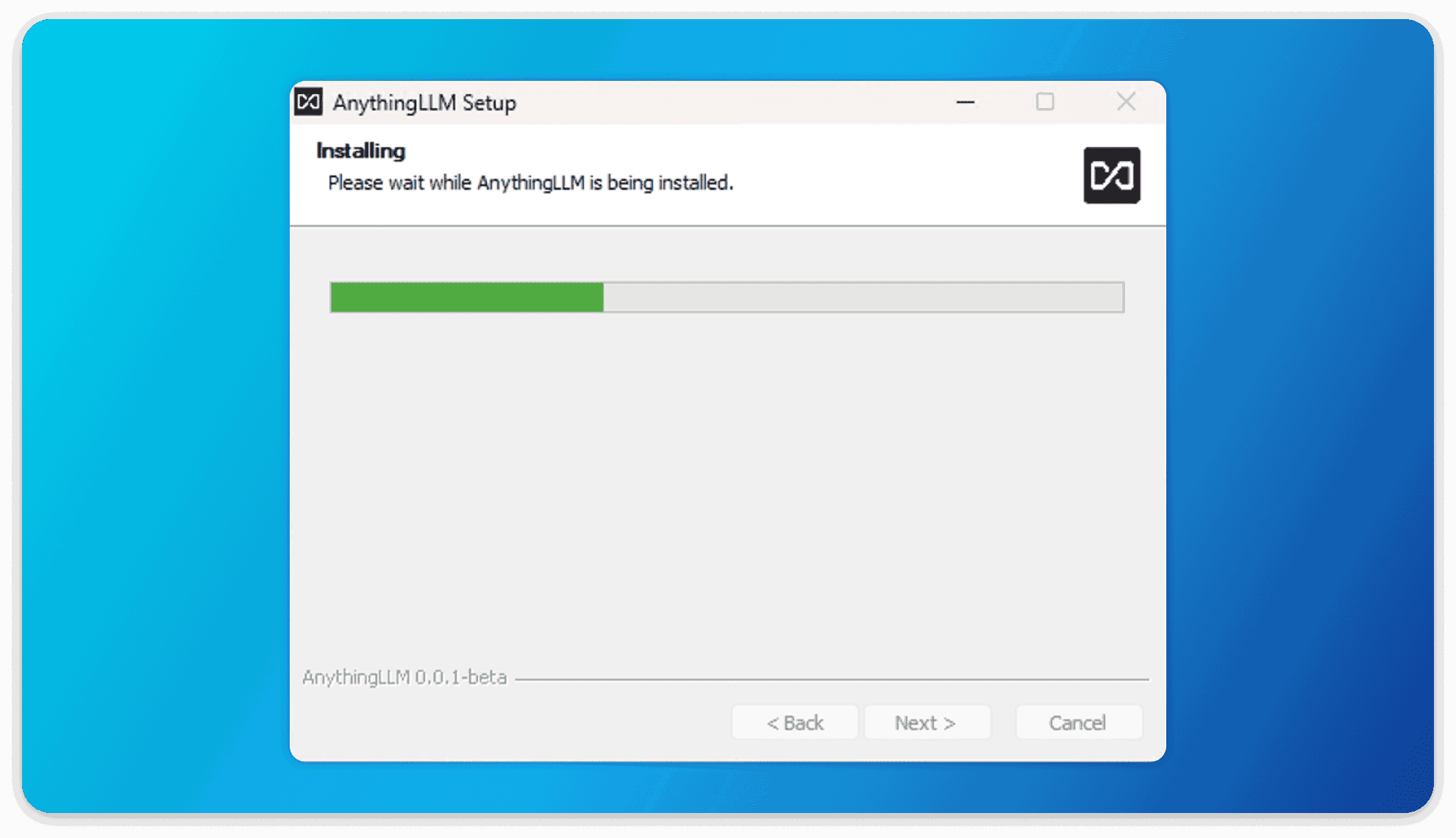
After which, now the regular installer can run to install RealTimeX Desktop!
Local LLM support
➤ RealTimeX desktop includes a built-in local LLM powered via Ollama (opens in a new tab). This is a super convenient way to get started with LLMs without any additional setup.
In order for RealTimeX to leverage your GPU (NVIDIA or AMD) or even NPU we need to install some extra dependencies. This will be done automatically during installation.
If these extra dependencies are not installed, you will see a warning in the UI and you will get reduced performance for local LLMs since you will be limited to CPU processing.
Read this on how to manually install the dependencies if the automatic installation fails
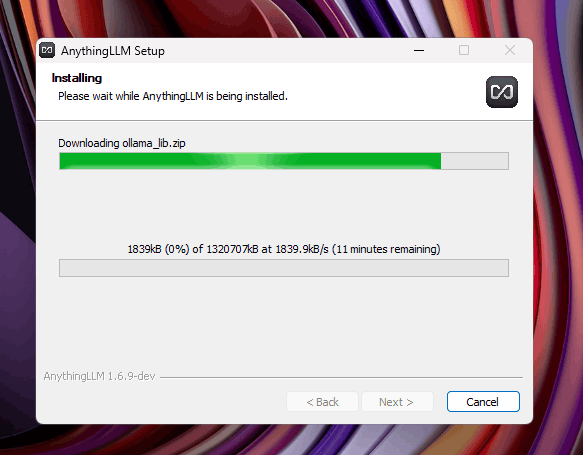
Click on the application name "RealTimeX" on your desktop to boot up RealTimeX!