
Step-by-step guide for installing RealTimeX on MacOS.
MacOS Installation
Install using the installation file
Install the right dmg!
Make sure you downloaded the correct dmg for your device! We support both types of chips found in MacOS devices.
➤ Apple Silicon devices (M1/M2/M3)
➤ Apple (Intel)
PERFORMANCE ➤➤ Apple M-Series chips run local LLM inferencing considerably faster than Intel-based Mac.
Downloading the installation file from https://realtimex.ai (opens in a new tab)
Your internet browser may need you to verify you want to download and run the RealTimeX Desktop app since it may be marked as "untrusted" depending on your browser security settings.
Click "Keep" when downloading to allow the file to download.
Installing the application
After downloading the .dmg file from the link in the invitation email, you will want to double-click on the resulting installed file.
Once the dmg opens, you can drag the RealTimeX logo into Applications
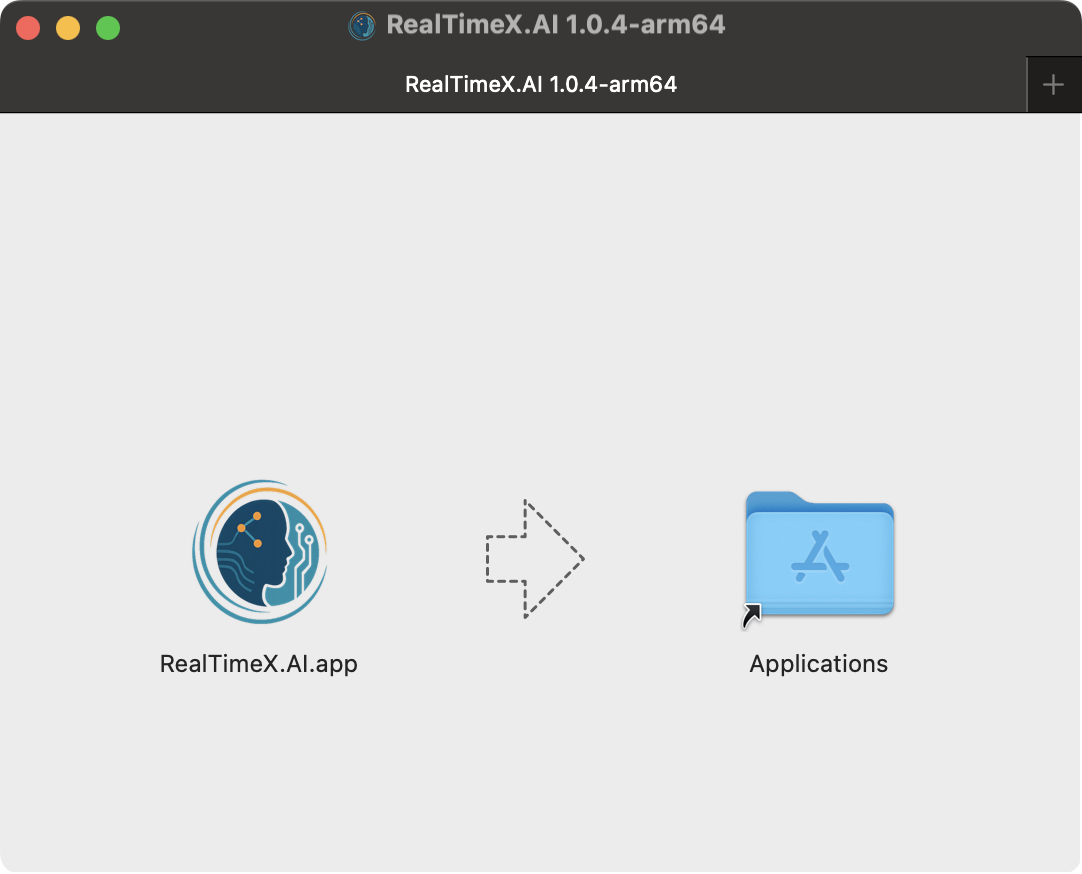
Once installed, you will find RealTimeX in your Applications folder as well as you can use cmd + spacebar and type in RealTimeX to run.