System Prompt Variables
System prompt variables allow you to inject dynamic and static variables into your system prompt on the fly. This is useful for a variety of use cases, such as:
- Injecting the user's name into the system prompt
- Injecting the current date and time into the system prompt
- Injecting static information into the system prompt like your company's name
- and more!
Default Variables
RealTimeX can have varying default variables depending on if you are using the RealTimeX via Docker or RealTimeX Desktop version.
RealTimeX comes with a set of default variables that you can use in your system prompt. You can view the full list of active variables by clicking on the System Prompt Variables link in the sidebar under Tools when on the settings page.
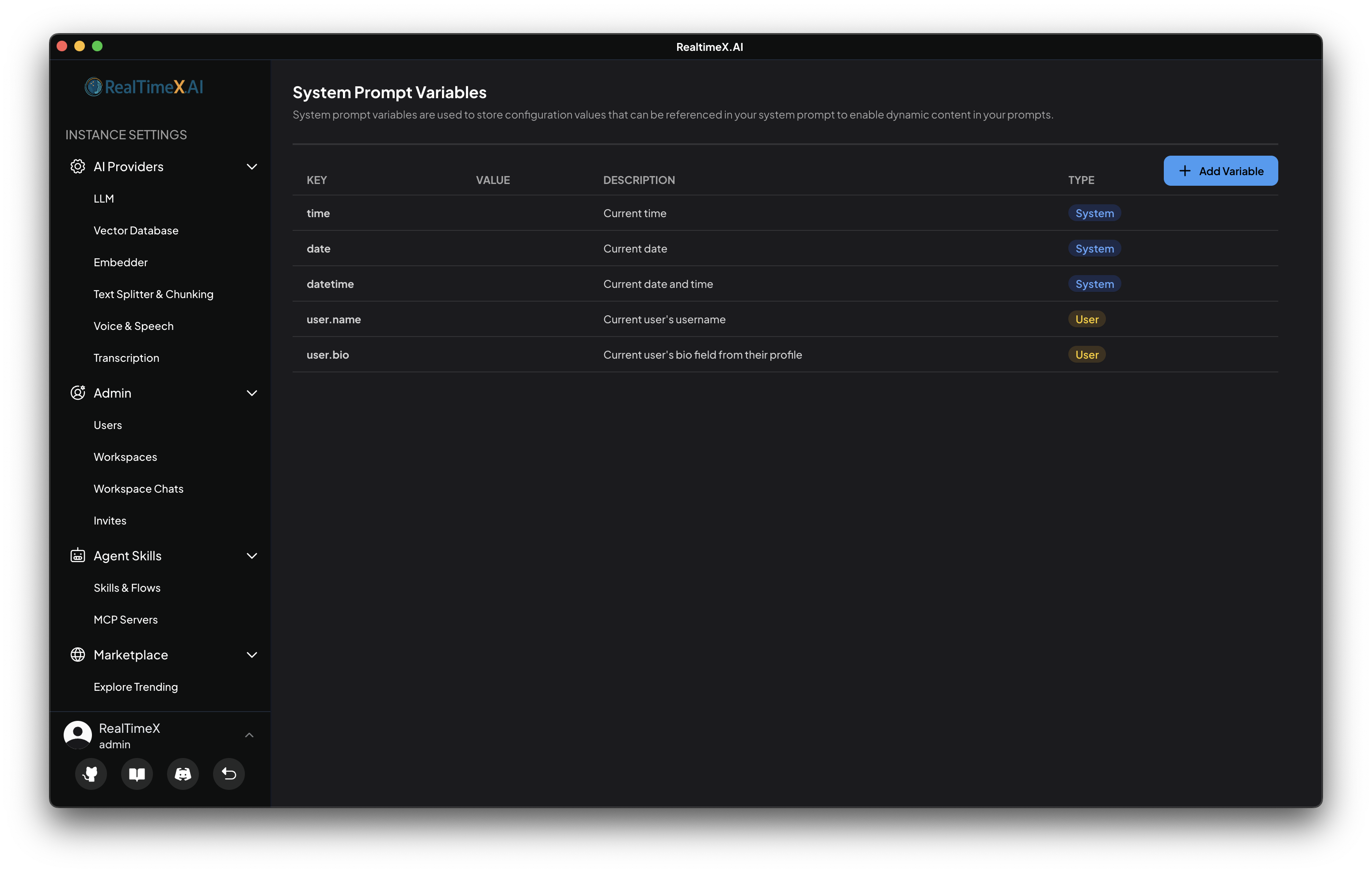
| Variable | Description | Available in |
|---|---|---|
{date} | The current date | ALL VERSIONS |
{time} | The current time | ALL VERSIONS |
{datetime} | The current date and time | ALL VERSIONS |
{user.name} | The name of the user | ALL VERSIONS |
{user.bio} | The bio field of the user | ALL VERSIONS |
{os.name} | The name of the operating system | RealTimeX Desktop |
{os.arch} | The architecture of the operating system | RealTimeX Desktop |
Note: Any time based variable will the current time of the machine RealTimeX is running on. Keep this in mind in Docker based versions of RealTimeX.
Custom Variables
You can also create your own custom variables by clicking the Add Variable button on the System Prompt Variables page.
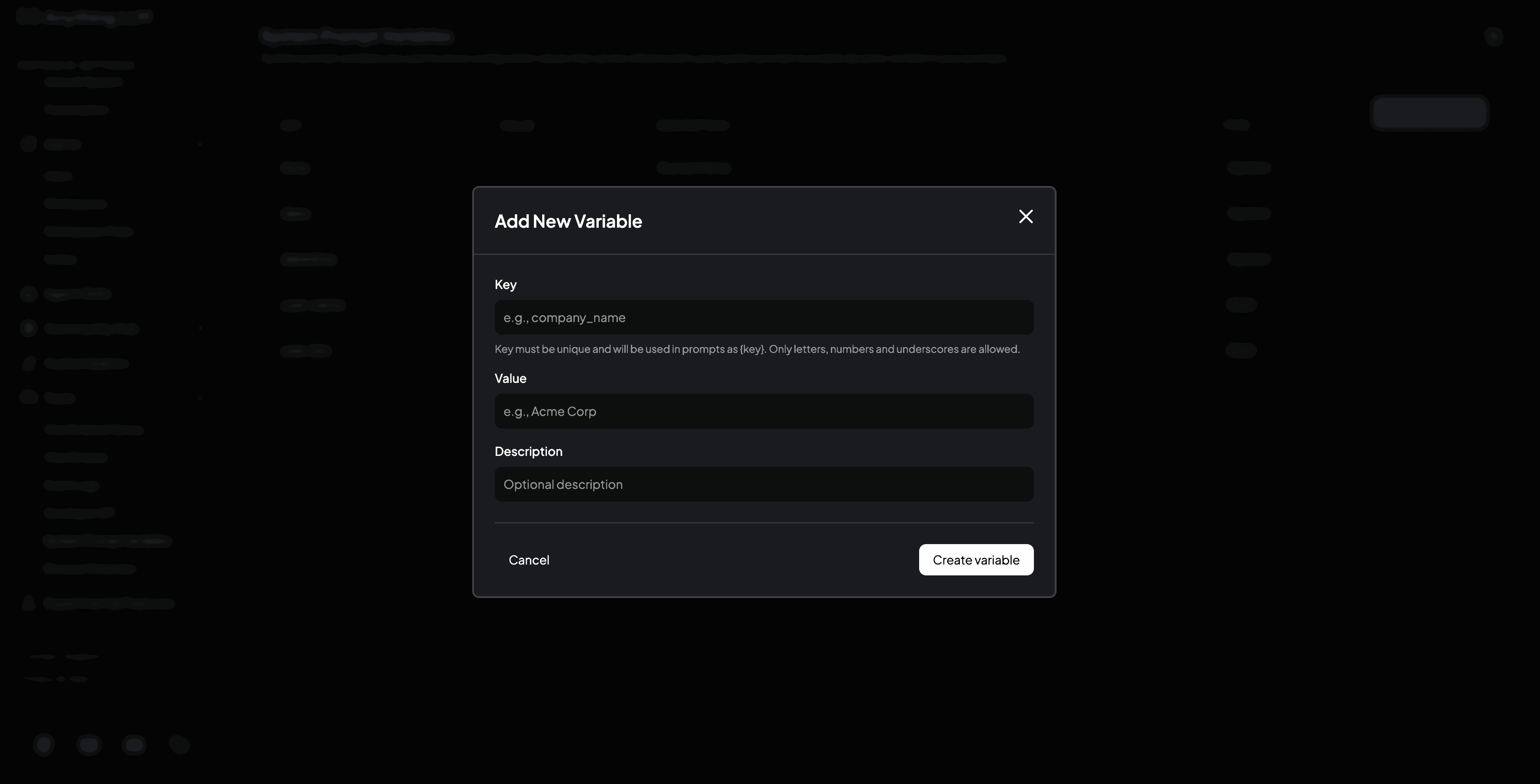
All user created variables are static values and will not change when expanded into a system prompt.
How to use system prompt variables
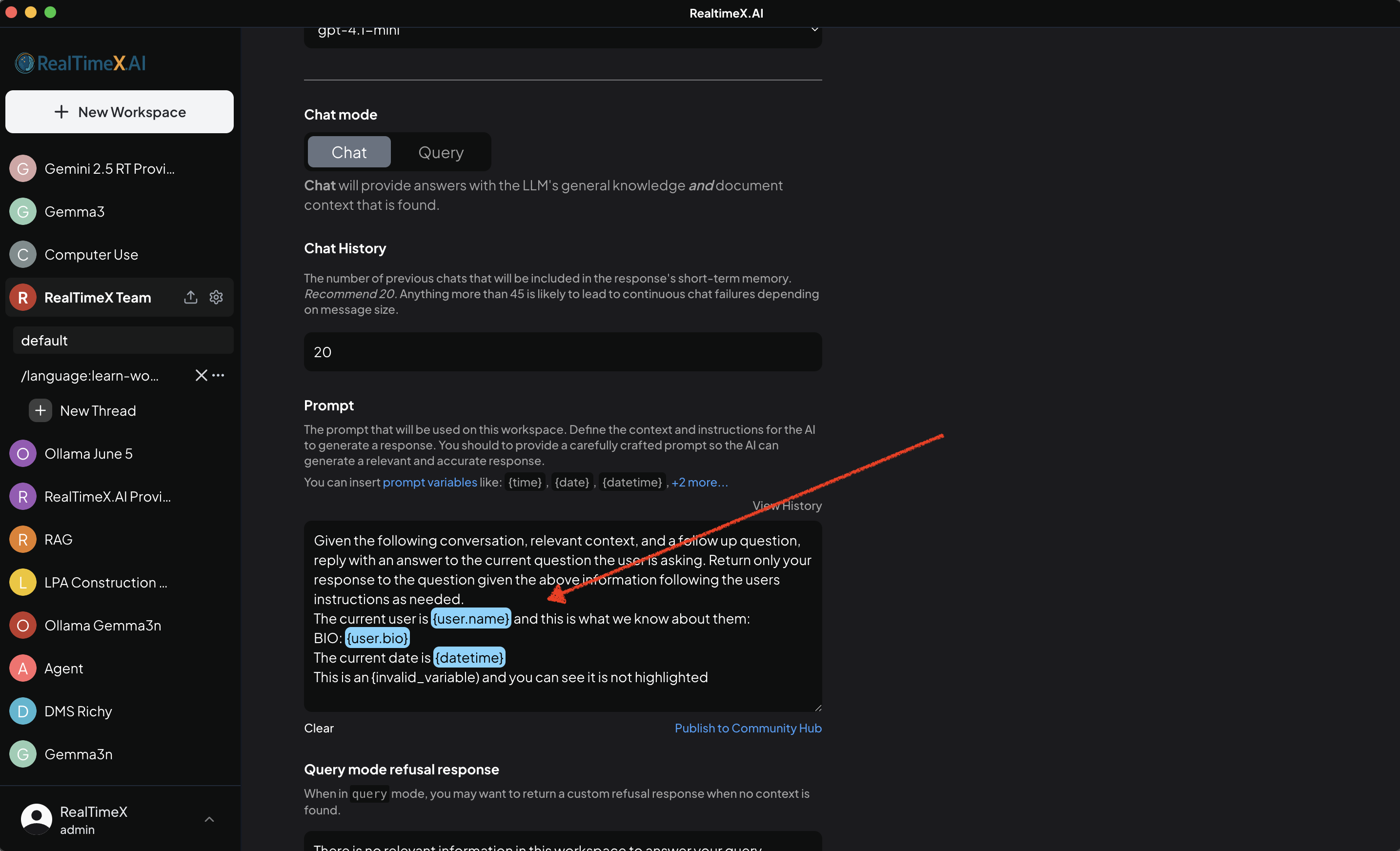
Invalid variables will simply not be expanded into the system prompt - you will not see an error message during an LLM request.
You can tell if a variable is invalid once you stop editing the system prompt and it is not highlighted in blue in the UI.
System prompt variables can be used any workspace's System Prompt field. You can inject a variable by editing the system prompt and using the variable in the prompt.
Example:
You are a helpful assistant.
Today is {date} and the current time is {time}.
The user's name is {user.name}, they work at {company_name} and this is what we know about them:
{user.bio}
When expanded into a system prompt, it will look like this:
You are a helpful assistant.
Today is 2024-01-01 and the current time is 12:00:00.
The user's name is John Doe, they work at Google and this is what we know about them:
Rock climbing is my favorite hobby and I am obsessed with optimizing AI agents and workflows.
UI Example: