About the RealTimeX Browser Extension
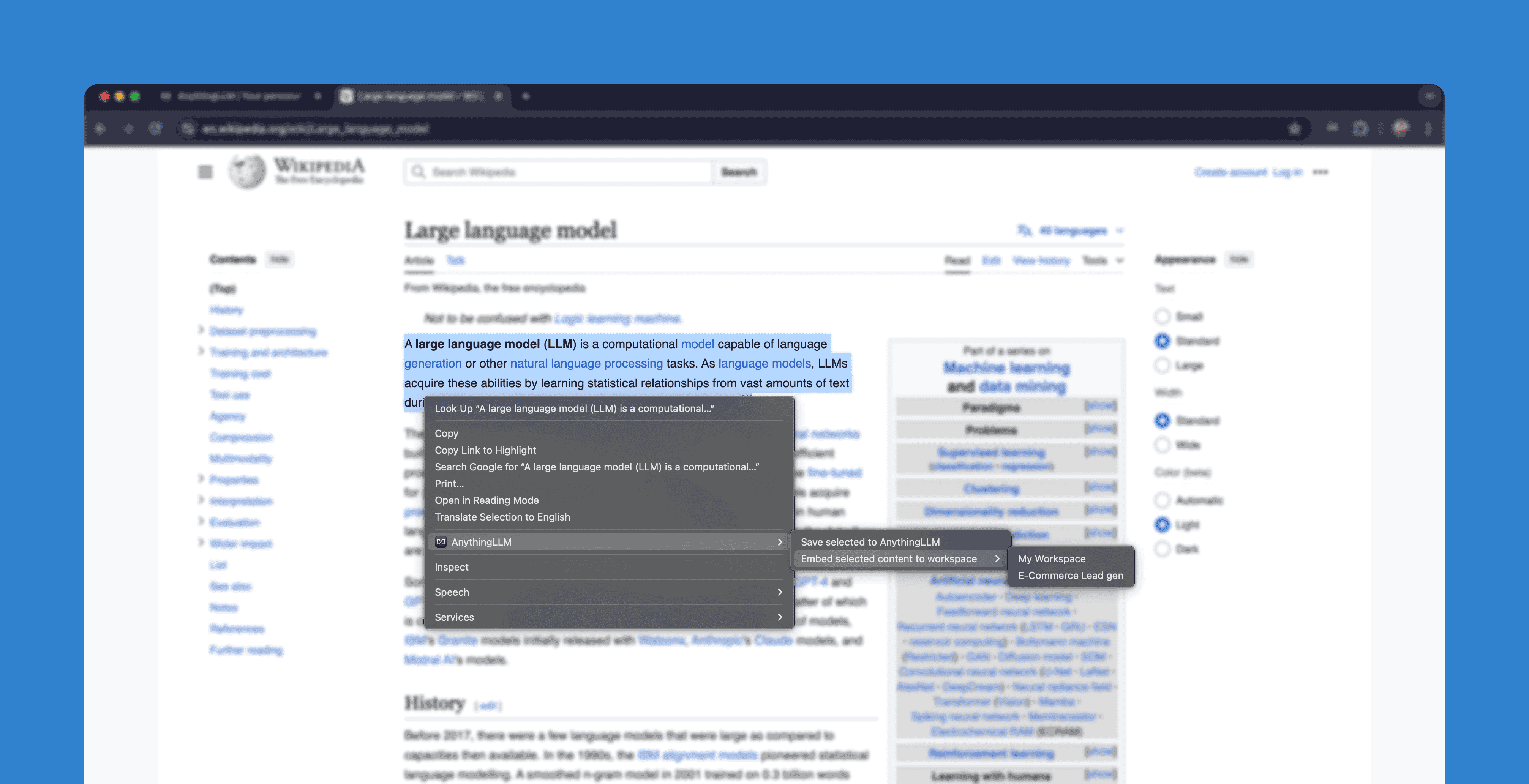
The RealTimeX Browser Extension is a tool that allows you to connect your RealTimeX instance to your browser. This allows you to send and embed information from the web directly to RealTimeX or embed directly into your workspaces for later!
With the browser extension, you can:
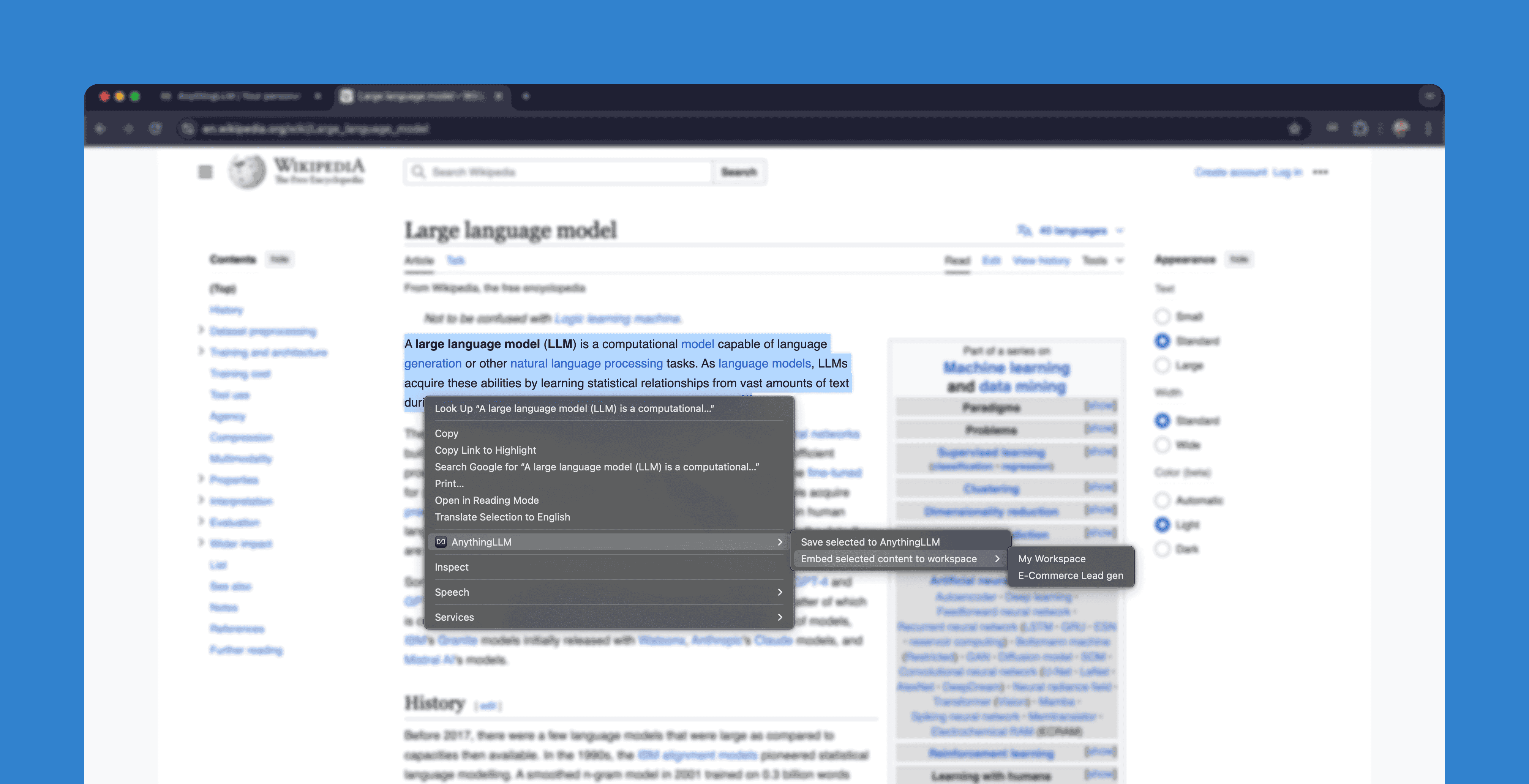
- Send entire webpages or just highlighted text snippets to RealTimeX
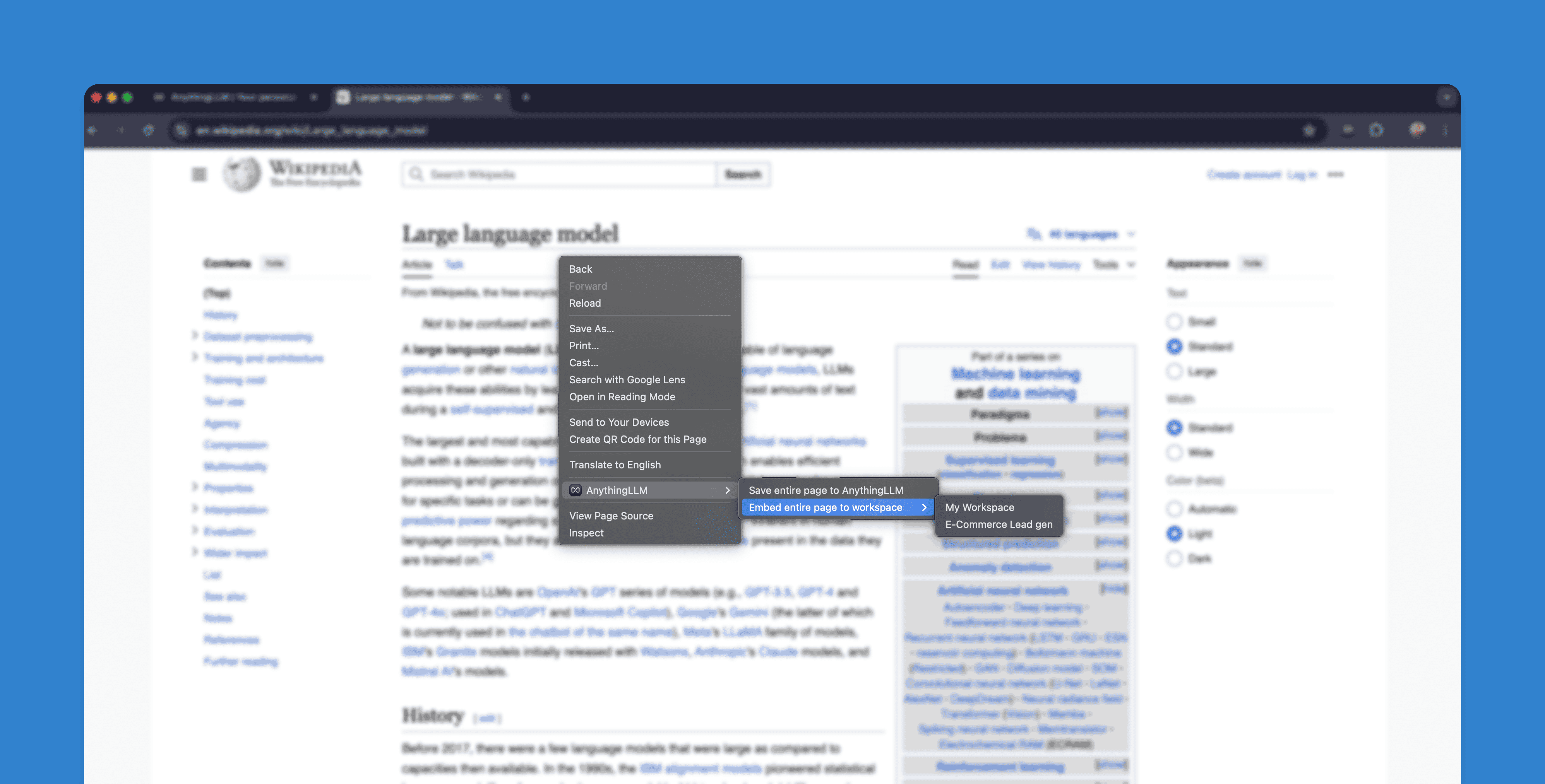
- Embed information directly into your RealTimeX workspaces
- Collect or embed web content that is password protected, VPN protected, or otherwise inaccessible to the public internet straight from your browser.
All offerings of RealTimeX support the browser extension.
Installing the RealTimeX Browser Extension
Supported Browsers:
- Chrome
- Edge
- Brave
- Firefox
You can find the RealTimeX Browser Extension in the Chrome Web Store → (opens in a new tab)
After installing the browser extension, you should see a new icon in your browser toolbar.
Connecting the Browser Extension to RealTimeX
Connecting to your specific RealTimeX instance is simple.
- Open the RealTimeX instance you want to connect to in your browser or on Desktop.
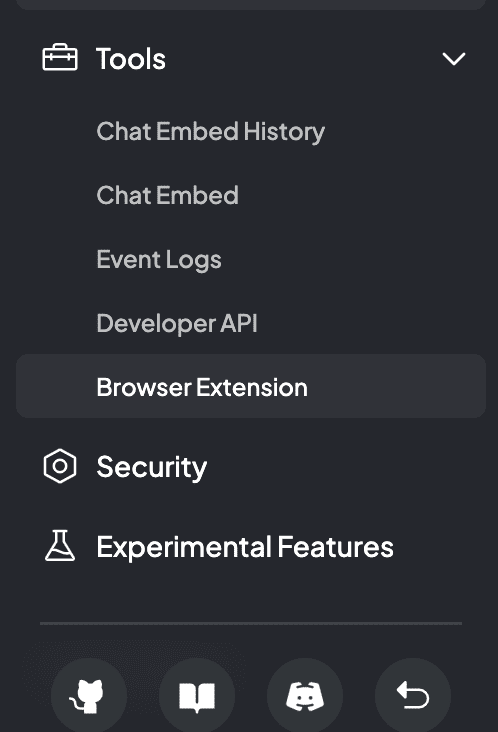
- Open settings and Click on the
Browse Extensionsidebar element underTools.
- You will land on a page with a
Generate API Keybutton. Click on the button to generate an API key. ClickCreate API Keyto create the key.
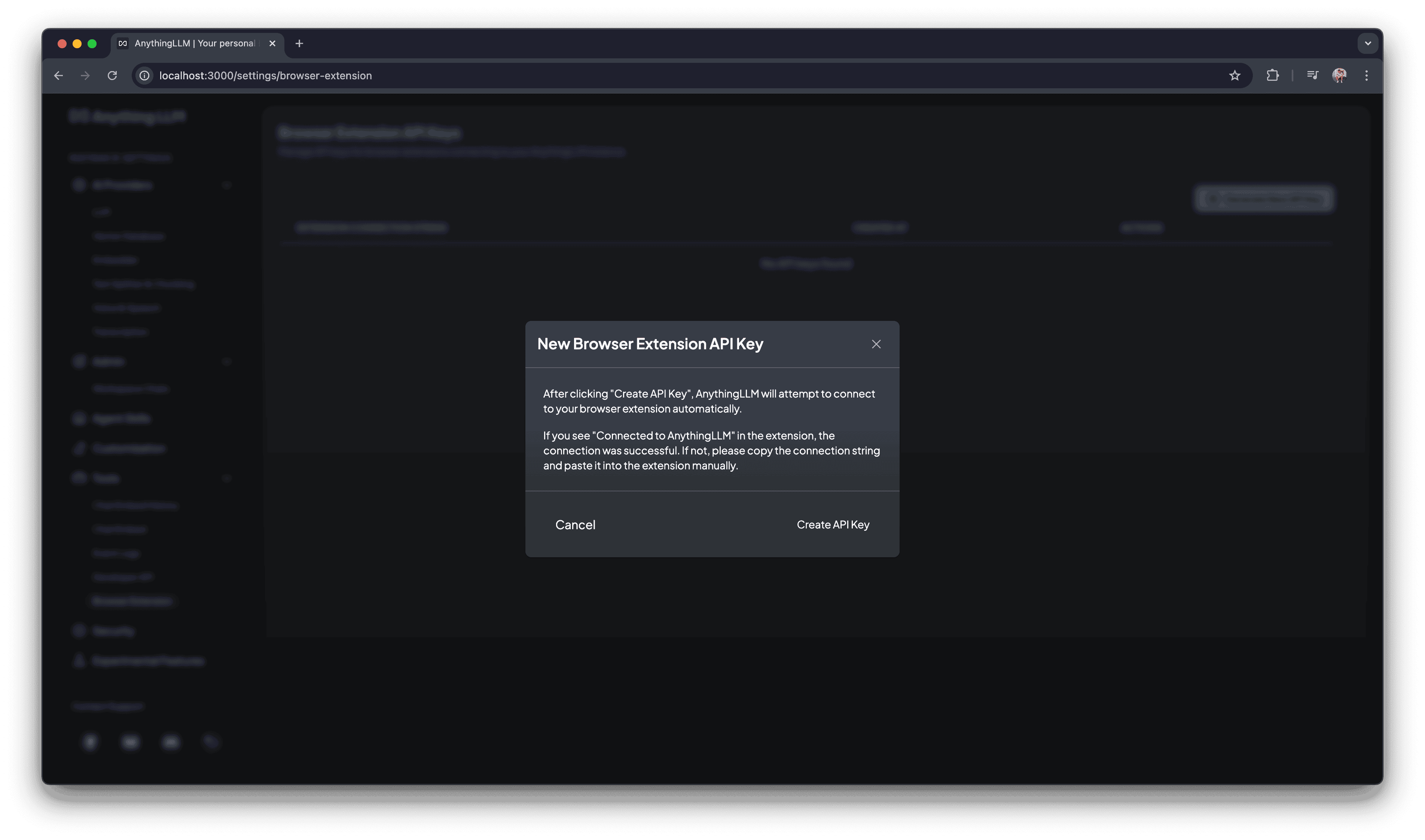
- If possible the browser extension will automatically connect to your RealTimeX instance. If not, you can manually connect by copying and pasting the connection string into the browser extension.
Automatically connected to RealTimeX
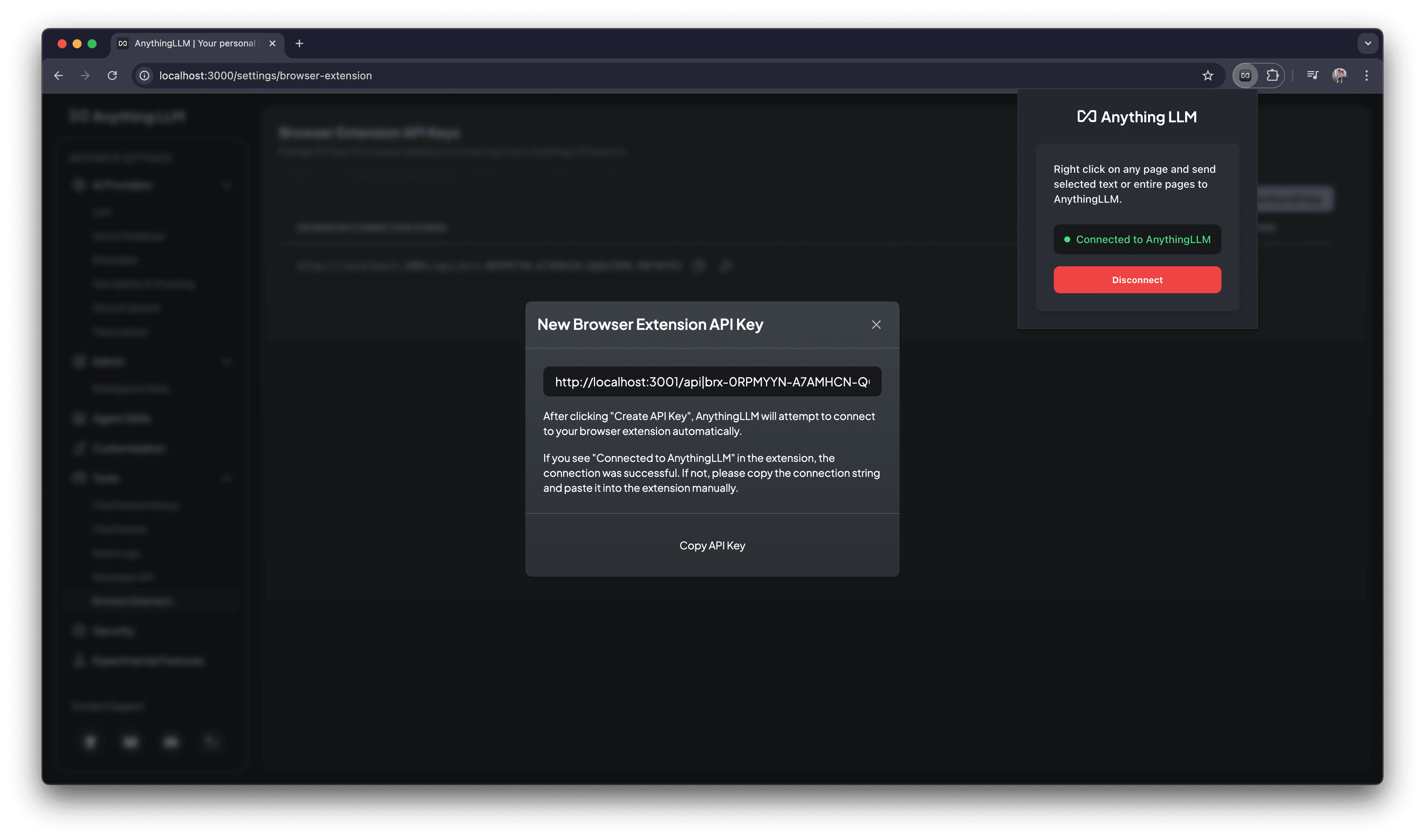
Manually connect to RealTimeX
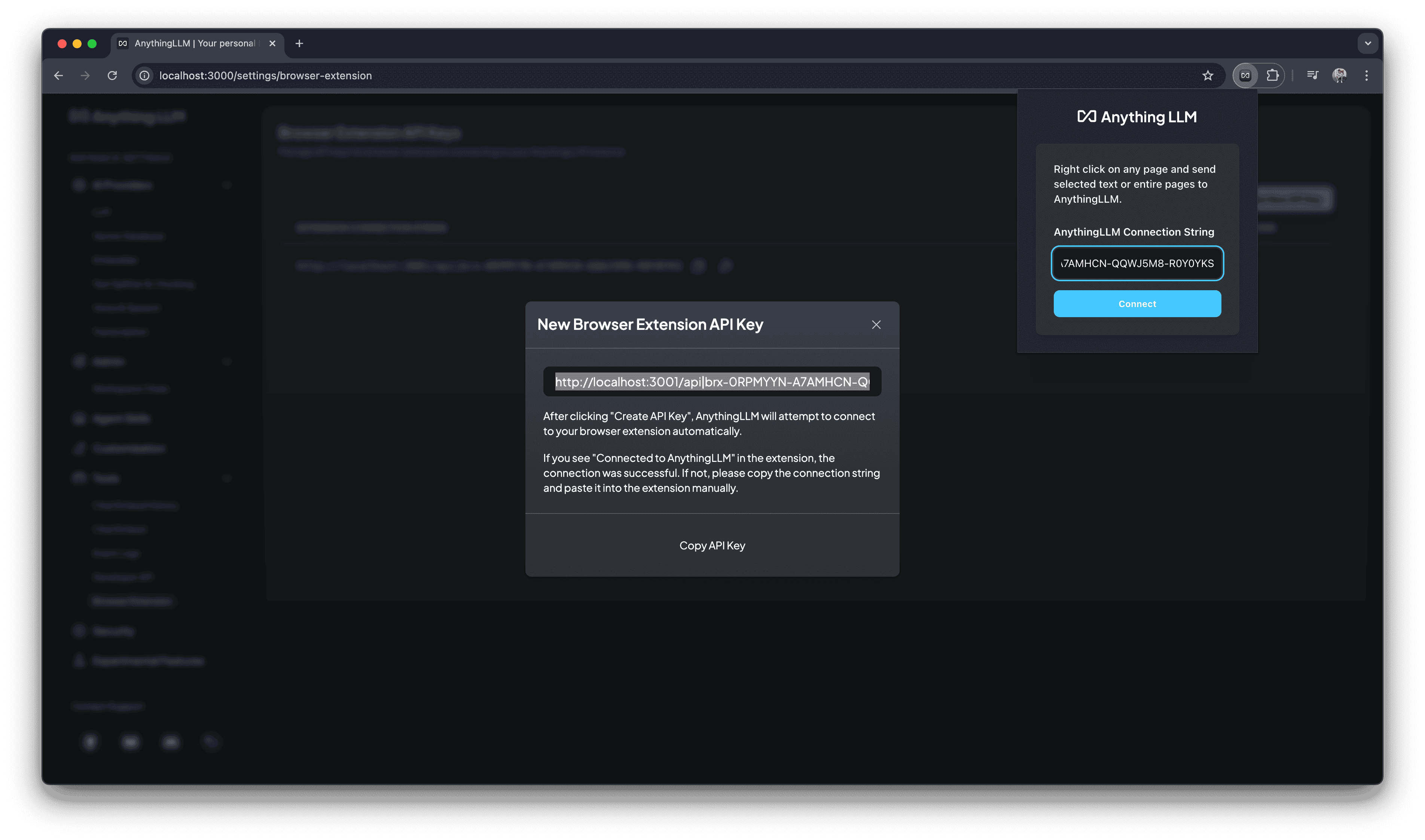
- You are now connected to your RealTimeX instance! You can now use the browser extension to collect and send information on any website directly into RealTimeX or embed directly into your workspaces for later!
Send an entire webpage to RealTimeX
Send a snippet of text you highlight on page
Customizing the Browser Extension
Docker only:
By default, the image in the browser extension is the RealTimeX logo. However, it will automatically use the logo of the instance you are connected to if set in the Customization section of the settings page.
If you want to further customize the browser extension, you can do so by forking the RealTimeX Browser Extension GitHub Repository (opens in a new tab) and making your own changes.
Once you have made your changes, you can build the extension using the yarn build command.
After building the extension, you can load it into your browser by clicking the Load unpacked. button in Chrome and selecting the dist folder.